
LaunchYimaNext
macOS 26 removed Launchpad. LaunchYimaNext brings it back: all your apps full screen, page by page, organized however you like.
- Version
- 1.1.0
- System
- macOS 26 or later
- Chip
- Apple Silicon and Intel
- Price
- Free
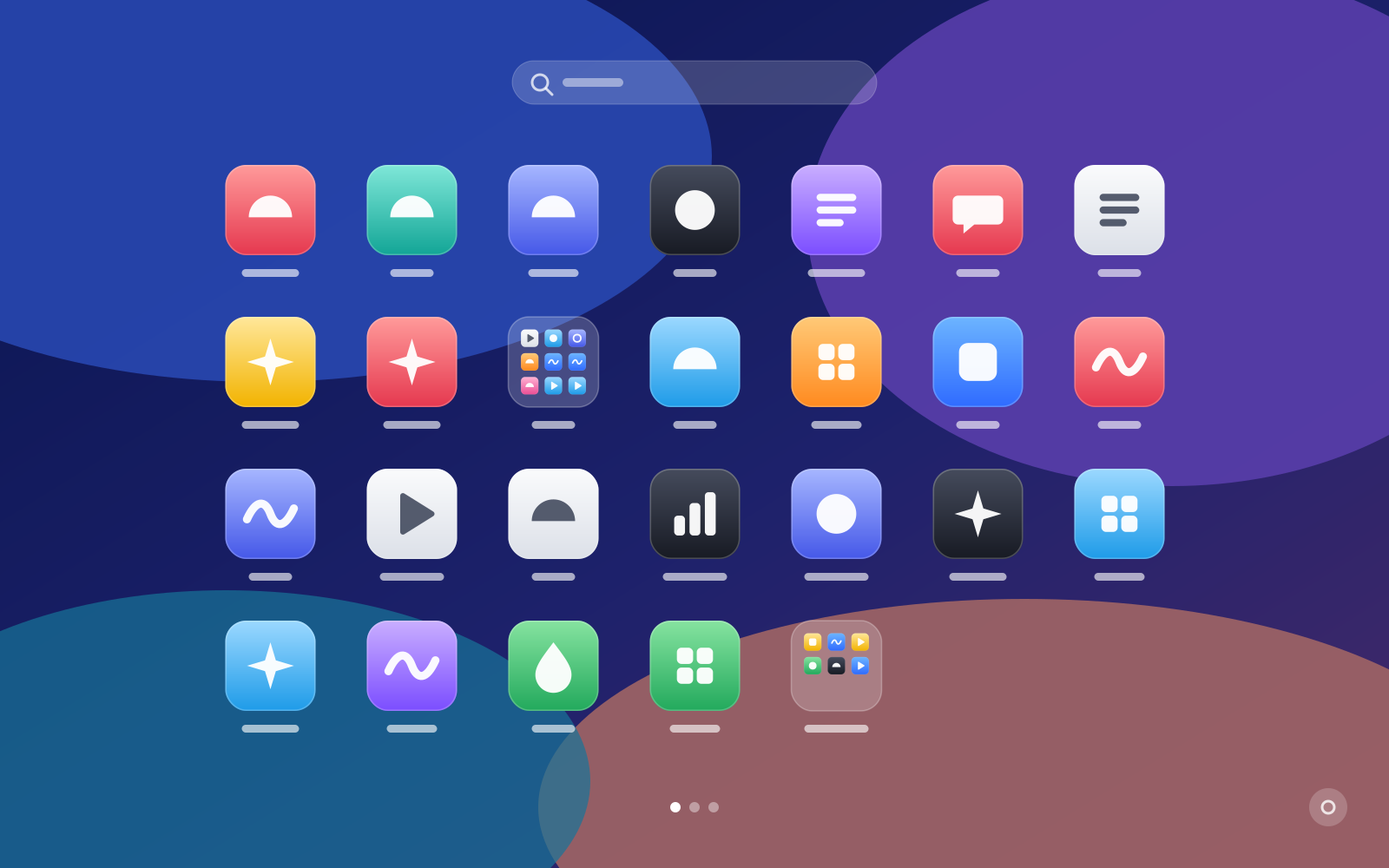
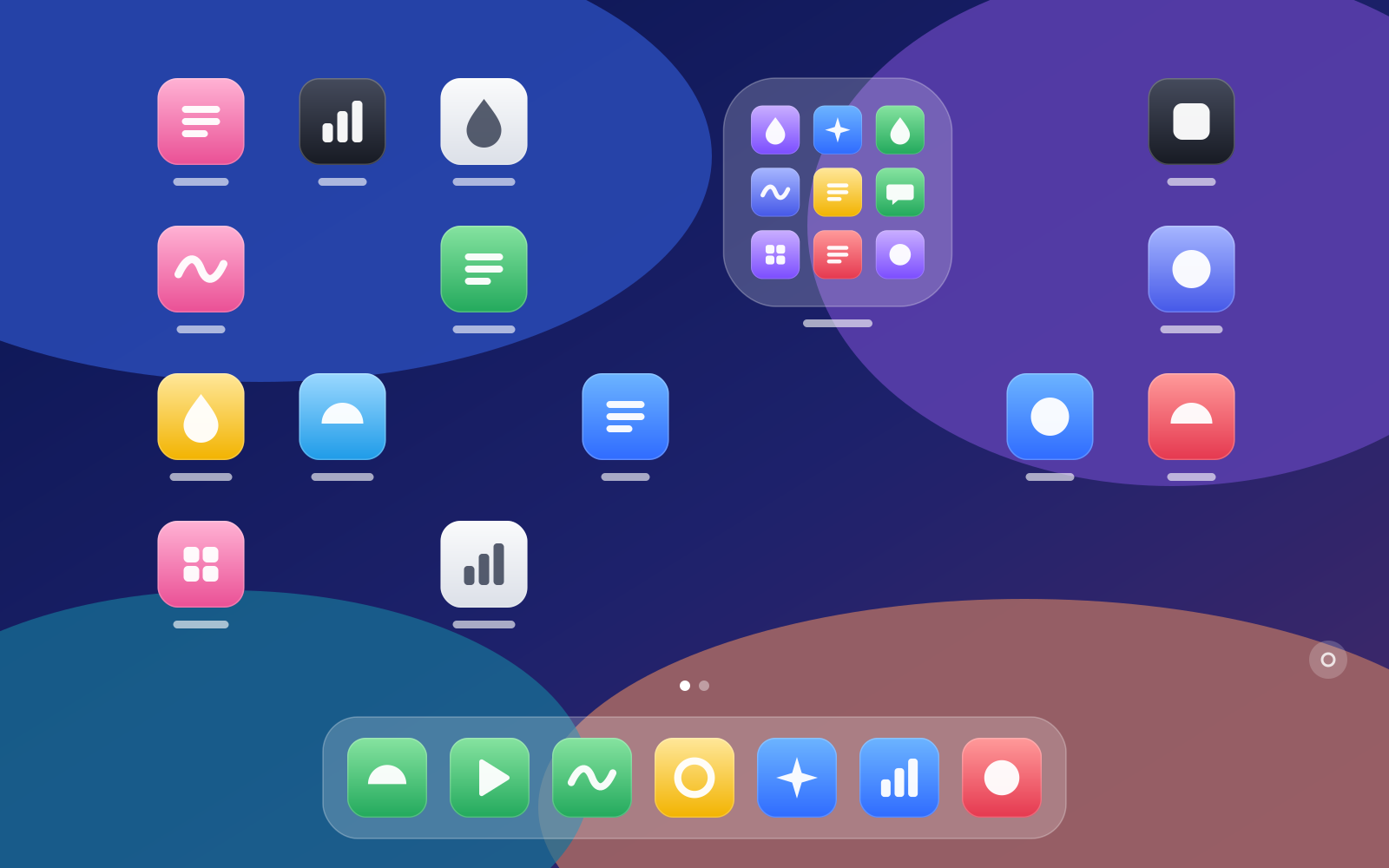
Switch between the two layouts any time; each keeps its own arrangement. Illustration only: you will see the apps on your Mac.
Works the way Launchpad did
Everything you were used to, plus a few things that help when you have a lot of apps.
Just like Launchpad
All your apps full screen, page by page. Swipe on the trackpad, scroll or use the arrow keys to turn pages, and click to open.
Type to search
Start typing as soon as it opens. Matches app names, English names and Chinese pinyin; press Return to open the first result.
Drag to organize
Drop an icon on another to make a folder, or between two icons to move it. Drag to the screen edge to change pages.
Sort in one click
Too many apps? Put them into folders by App Store category in one go; anything uncategorized goes into Other. Undo if you don't like it.
Bring your old layout
If your old Launchpad data survived the upgrade, import its pages, order and folders exactly as they were.
Two layouts
The classic Launchpad, or a free-form home screen with large folders and a fixed bar at the bottom.
Your background
11 built-in styles, or your own photo with adjustable blur and transparency. Changes show up immediately.
Open it your way
Press ⌥ Space by default, or pick your own shortcut. You can also use a hot corner or click the Dock icon.
10 languages
简体中文, 繁體中文, English, 日本語, 한국어, Français, Deutsch, Español, Português and Русский. Switching takes effect immediately.
Requirements
- System
- macOS 26 Tahoe or later
- Chip
- Apple Silicon and Intel (universal app)
- Size
- About 7 MB
- Price
- Free
- Safety
- Signed with Developer ID and notarized by Apple
No data collected
LaunchYimaNext needs no account, uploads nothing, and has no analytics or ads.
Your layouts and settings stay on your Mac, in ~/Library/Application Support/LaunchYimaNext.
It only asks for permission to control Finder when you move an app installed from the App Store to the Trash, so that Finder can remove it.
Install
It takes a minute or two.
-
Download the DMG
Use the download button on this page to get LaunchYimaNext-1.1.0.dmg.
-
Drag to Applications
Open the DMG and drag LaunchYimaNext onto the Applications folder next to it.
-
Open it
Open LaunchYimaNext from Applications. After that, press ⌥ Space or click its Dock icon to bring it up.
-
Set it up
Click the gear in the bottom-right corner to launch at login, import your old layout or change the background.
FAQ
Nothing happens when I press ⌥ Space
Another app may already use that shortcut. Click the LaunchYimaNext icon in the Dock to open it, click the gear in the bottom-right corner, and choose a different shortcut.
Will it move or change my apps?
No. Pages and folders only change how apps are arranged in the launcher; the app files stay where they are. An app is moved to the Trash only when you choose Move to Trash from its menu and confirm.
How do I update?
Automatic updates are not turned on yet. New versions are published on this page: download it and drag the new version into Applications to replace the old one. Your layouts and settings are kept.
How do I uninstall it?
Quit LaunchYimaNext and move it from Applications to the Trash. To remove your layouts and settings too, delete the ~/Library/Application Support/LaunchYimaNext folder.
How do I report a problem?
Email contact@yimakeji.cn with your macOS version and what happened. Screenshots help.
Download LaunchYimaNext
Version 1.1.0 (released 20 October 2026), free. For Apple Silicon and Intel Macs running macOS 26 or later.
Notarized by Apple. SHA-256:d474e31c095c315287eb96a4a3fb2d8e443e0d2d17ab1992b1313a3fa7f39497